








Learn how to fundamentally protect the assets stored on your IFS.
By Pauline Brazil Ayala
The importance of securing your Integrated File System (IFS) cannot be overstated. It is a critical component of your IBM i environment and is vulnerable to malware through actual corruption/encryption/exfiltration of data or by becoming the “hidden” host on the corporate network, allowing the malicious file to infect the rest of the network. Using a zero-trust approach is highly recommended to secure your IFS.
A few factors warrant an increase in attention to IFS security: 1) the increase of open source applications running in the PASE environment; 2) the general lack of attention given to configuring IFS permissions; 3) technological advancements enabling cybersecurity criminals to operate at a much faster pace.
Something important to consider is that malware does not discriminate when it is searching for another system to infect. The IFS can appear as just another file structure, another target, so it should be protected like any other file system on any other platform, especially considering the amount of sensitive data it often contains.
In this article, I will discuss the following process to secure your IFS permissions, which will help you protect the IFS at the most fundamental level:
- Review IFS Permissions
- Collect Least Privilege Authorities
- Implement IFS Permission Changes
- Monitor the IFS
Review IFS Permissions
Take inventory of what resides in your IFS and, if you do not already know, understand what the files and directories are used for. So often, this exercise reveals unexpected usage. You will want to pay particular attention to objects that are “wide open” to everyone, with the default read, write, and execute permissions enabled, especially root directories, executables, and objects that contain sensitive information.
There are several interfaces available to work with the IFS.
Using the IBM i command line:
- Access QShell through the QSH From there, you can navigate to the desired directory and run an ‘ls -l’ or ‘ls -la’ command to see the list of objects in the directory and the associated permissions. The ‘attr’ command lets you view additional attributes.
For example:
- cd /ABCompany/FinanceApp
- ls -l
- attr
- Access the PASE environment using the command ‘CALL QP2TERM’ and work similarly to the QShell command line.
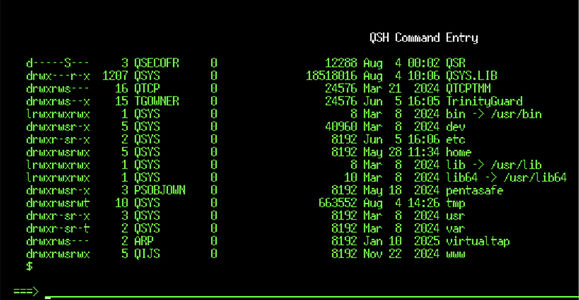
Figure 1. QSH command entry showing sample IFS listing and permissions.
Note that in both interfaces mentioned above, you will see permissions in the left-most column. The illustration below further explains the permission assignments.
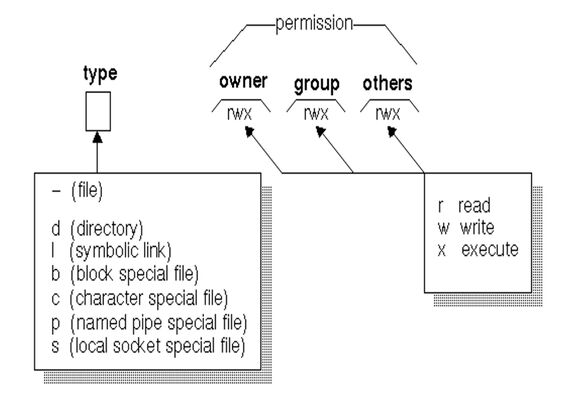
Figure 2. When an object is created in the IFS, the default permissions assigned are RWX (read, write, execute) for the owner, the group, and for everyone else on the system.
You can also use the IBM i OS command WRKLNK (Work with Object Links) to view a listing of IFS objects. Authority details can be viewed using Option 9.
For a graphical interface, the IFS can be accessed through IBM’s Access Client Solutions (ACS) and Navigator.
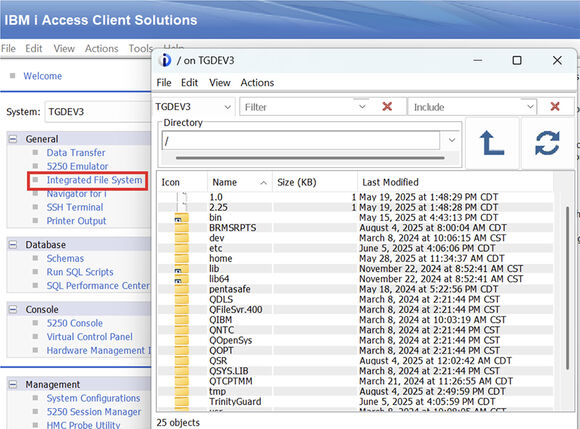
Figure 3. Sample IFS listing through IBM i ACS.
There are also free third-party tools available (ex: PuTTY) that allow you to work with your IFS objects and permissions.
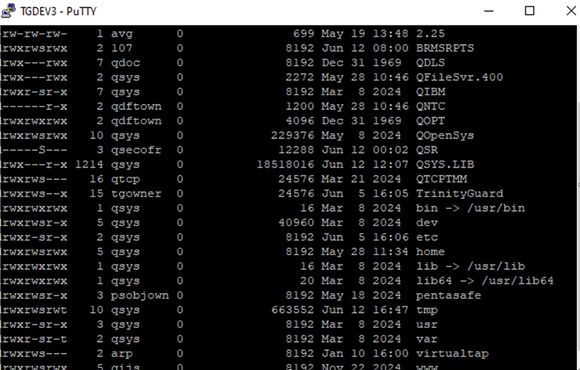
Figure 4. PuTTY screenshot listing IFS permissions.
Gather Least Privilege Authorities
A common challenge I hear is that the IFS has been left unmanaged for a long time, and there is no clear way to determine which permissions are actually needed. Initially released in IBM i 7.3 (for users) and enhanced in IBM i 7.4 (for objects), Authority Collection is a great feature that provides an easier way to analyze the minimum authority required to access objects.
You can start Authority Collection on a user (select users who represent the various roles in your company) or on an object, and let it run for an appropriate sampling period. This will build a repository of data that includes details on current permissions vs. the minimum permissions required.
Authority Collection commands:
- STRAUTCOL - Start Authority Collection (User/Object)
- ENDAUTCOL - End Authority Collection (User/Object)
- DLTAUTCOL - Delete Authority Collection (User/Object)
- CHGAUTCOL - Change Authority Collection (Object)
There are a couple of ways to display users with Authority Collection enabled. One is simply the Display User Profile (DSPUSRPRF) command, which shows whether Authority Collection is active for the user, whether an Authority Collection repository exists for the user, and the values that would have been specified on the STRAUTCOL command for the user.
Another way to see which users have Authority Collection active is to run the following SQL script: SELECT * FROM QSYS2.USER_INFO WHERE AUTHORITY_COLLECTION_ACTIVE = ‘YES’
To view the Authority Collection data, you can run SQL scripts on the following views:
- AUTHORITY_COLLECTION - for users
- AUTHORITY_COLLECTION_OBJECT - for libraries and objects in libraries
- AUTHORITY_COLLECTION_LIBRARIES - for all libraries and objects in all libraries
- AUTHORITY_COLLECTION_FSOBJ - for file system objects in the “root” (/), QOpenSys, and user-defined file systems
- AUTHORITY_COLLECTION_DLO - for document and folder objects
(Reference: https://www.ibm.com/docs/en/i/7.6.0?topic=collection-authority-views, https://www.ibm.com/docs/en/i/7.6.0?topic=collection-authority-interfaces)
Analyzing the difference between the required and current authorities will help you plan the changes needed to implement a least-privilege model.
Implement IFS Permission Changes
To change permissions in the IFS, you can use any of the interfaces previously mentioned for the PASE environment, the IBM i command line, or a graphical interface.
Making changes to IFS permissions in QSH, Qp2term, or another tool like PuTTY requires familiarity with the permission assignments. Use the chart and example below to determine the values you need to set your permissions.
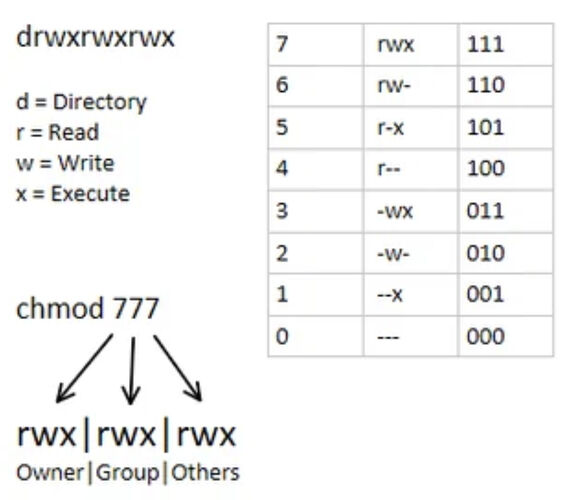
Figure 5. Illustration of permission assignments.
Using QSH or Qp2Term:
■ To change permissions on a file or directory:
■ Use the ‘chmod’ command
■ Ex: chmod 777 sample.txt
■ The numbers ‘777’ correspond to the set of permissions being assigned. See the chart above for details.
■ To change the owner of a file or directory:
■ Use the ‘chown’ command
■ Ex: chown NEWOWNER filename.txt
Note that there are a couple of advanced permissions you may notice or want to use.
1) Sticky Bit - Restricts permission to only allow delete or rename by the owner. It is denoted by a ’T’ or ’t’ in the public execute authority permission of a directory—for example, drwxrwxrwt.
2) SUID and SGID - Executables run as the owner or the group. Each one is denoted by an ’S’ or ’s’ in the owner’s or group’s execute authority permission.
For example, ‘-r-sr-xr-x’ shows permissions for a file object (‘-‘ in the first position) with the SUID bit enabled in the fourth position, and ‘-r-xr-srwx’ shows permissions for a file object with the SGID bit enabled in the seventh position.
Using IBM i commands:
■ To change permissions on a file or directory, use the CHGAUT command.
■ To change the owner of a file or directory, use the CHGOWN command.
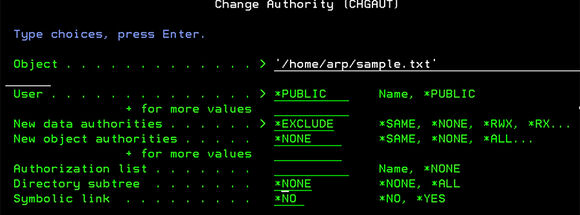
Figure 6. Changing the authority of an IFS file using the IBM i OS command line.
Monitor IFS Permissions
After you have implemented and tested IFS file permission changes, plan to revisit and review them regularly to ensure your work remains intact and your least-privilege model is maintained.
A list of IFS objects in a particular directory can be generated using QSH or Qp2Term and written to a text file using the ls command.
For example:
- To send a listing of the current directory to a text file, navigate to the desired directory using the cd command and then:
ls -l > YourOutputFileName.txt - To send a listing of a specific directory to a text file in a specific directory:
ls -l /directory/path/you/want/listing/of > /directory/path/of/YourOutputFileName.txt
IBM’s IFS_OBJECT_PRIVILEGES table function is another good resource for creating a benchmark and ongoing snapshots of your IFS objects and permissions.
(Reference: https://www.ibm.com/docs/en/i/7.4.0?topic=services-ifs-object-privileges-table-function)
Through the WRKLNK ‘/your/desired/path/name’ command, you can review and update IFS object permissions one at a time. Use Option 9=Work with Authority on the desired object.
Configuring your IFS permissions to the minimum necessary, along with routine monitoring, significantly limits the potential for a security breach on your IBM i, regardless of the method an attacker may use to try to gain access to your IFS. It also protects against accidental misuse by users within your organization and helps you comply with various compliance regulations.
 Pauline Brazil Ayala is Senior Security Advisor at Fresche Solutions. Pauline is an IBM i security expert with over 25 years of experience in developing enterprise-level security software. Her involvement has spanned the entire spectrum of software production, from initial requirements gathering to final delivery, including sales and ensuring ongoing customer satisfaction.
 Business users want new applications now. Market and regulatory pressures require faster application updates and delivery into production. Your IBM i developers may be approaching retirement, and you see no sure way to fill their positions with experienced developers. In addition, you may be caught between maintaining your existing applications and the uncertainty of moving to something new.
 IT managers hoping to find new IBM i talent are discovering that the pool of experienced RPG programmers and operators or administrators with intimate knowledge of the operating system and the applications that run on it is small. This begs the question: How will you manage the platform that supports such a big part of your business? This guide offers strategies and software suggestions to help you plan IT staffing and resources and smooth the transition after your AS/400 talent retires. Read on to learn:
LATEST COMMENTS
MC Press Online