









For decades, applications were built using traditional programming languages like FORTRAN, COBOL, BASIC, and C, coupled with a “Waterfall” methodology where each project was broken into a linear set of phases (like design, development, testing, and deployment) that were completed sequentially.
By Roger Sanders
Over time, the languages and methodology changed, but the process remained the same: programmers wrote text-based code, compiled it, and executed the resulting application to test what they had written. (If an interpreted language like BASIC was used, the compilation step was omitted.) However, data science, machine learning, and statistical analysis demand a very different approach to software development—one rooted in rapid experimentation, human-language explanation, and visual validation that can tell a story with data. Jupyter Notebook provides an interactive canvas that makes this type of storytelling possible.
What exactly is Jupyter Notebook?
In 1984, Donald Knuth, an award-winning computer scientist and mathematician, popularized the idea of combining explanatory English text with computer source code so that computer programs could be better explained to a wide range of people. (A concept known as literate programming.) Such a program could be printed on paper and shared as an actual “notebook” with others. Today, similar programs can be shared digitally as “notebook files”, and they can be used to blend live code, data, computational output, and narrative text with vibrant data visualizations like 3D models, charts, graphs, and interactive figures to create a single, cohesive document.
According to Project Jupyter (https://jupyter.org/), the organization responsible for maintaining Jupyter Notebook, “The Jupyter project, and its subprojects, all center around providing tools (and standards) for interactive computing with computational notebooks; Jupyter Notebook and JupyterLab are popular notebook-editor programs.” (The primary difference between Jupyter Notebook and JupyterLab is the user interface and workflow design—Jupyter Notebook provides a minimal, single-document view; JupyterLab offers a full, multi-document development environment.) Thus, Jupyter Notebook (and JupyterLab) is an open-source, interactive web-based application used to build and execute notebook files—files that let developers bring together data, code, and prose to tell an interactive, computational story.
How is Jupyter Notebook being used by IBM?
Jupyter Notebook is a fundamental pillar of IBM’s artificial intelligence (AI) and cloud ecosystem; Jupyter technology is embedded directly into many of IBM’s core software offerings to assist enterprise developers in training AI models, managing data pipelines, and deploying AI applications. For instance, a data scientist working with IBM technology might use Jupyter Notebook to build, train, test, and deploy an AI model in a production environment that can identify and stop fraudulent financial transactions from being completed in real time.
Jupyter Notebook is used as the primary code-first development environment in watsonx.ai. (Code-first is a software development approach that encourages programmers to focus on writing functional code as soon as possible and make iterative changes later as design and requirements evolve.) Data scientists can use watsonx.ai’s built-in Jupyter environment to create and validate predictive AI models using Python, R, or Scala. Resulting notebook files can then be used to test model pipelines, validate data quality, and seamlessly push AI models directly to the watsonx.ai runtime for deployment. In addition, IBM provides watsonx.ai users with sample notebook files that have been pre-configured with the Watson Natural Language Processing (NLP) Library to help them quickly perform tasks like sentiment or emotion analysis.
IBM also extends native Jupyter functionality in its Cloud Pak for Data software, as well as its Cloud Pak for Data as a Service offering, by adding enterprise-level features like version control locking (to prevent multi-user code overwrites) and role-based access management. Data engineers can schedule notebook files to run automatically at specific intervals for continuous data cleansing and ingestion. And Spark-ready kernels provided in pre-built notebook files can be used to connect to massive, multi-gigabyte cloud databases. (Notebook files developed on other platforms can also be imported directly into a Cloud Pak for Data enterprise data fabric.)
Finally, IBM relies on Jupyter technology to bridge modern data science with legacy IBM Z Systems technology. Machine Learning for IBM z/OS (MLz) contains an integrated Jupyter Notebook that can be used to build and train models directly on z/OS. Users can also build and train models off-platform using Cloud Pak for Data or other tools and import them to MLz for deployment.
Jupyter Notebook Core Components
The core components of Jupyter Notebook are the Jupyter Notebook App and some type of kernel. The Jupyter Notebook App is a client-server application that facilitates the editing and running of notebook files via a web browser. It can run locally or be installed on a remote server and accessed via the Internet. A kernel, on the other hand, is a “computational engine” that is used to execute source code contained in a Jupyter notebook file. The IPython (Interactive Python) kernel is used by default, but kernels for other programming languages are available.
When a Jupyter notebook file is opened, its associated kernel is automatically started in the background. As the file executes code, the kernel performs the necessary computations and returns any results. The kernel consumes CPU (central processing unit) and RAM (random-access memory), based on the size and type of computations performed. All RAM resources used are not released until the kernel itself is explicitly shut down. That said, it’s important to note that once a kernel is started, it remains active, even if the web browser being used by the Jupyter Notebook App is closed. Reopening the web browser and the same notebook file will cause the Jupyter Notebook App to reconnect to the active kernel.
The Jupyter Notebook Dashboard
In addition to serving as a tool for editing and executing notebook files, the Jupyter Notebook App provides a dashboard (known as the Jupyter Notebook Dashboard) that serves as a resource for managing notebook files and kernels. This dashboard has features very similar to those found in other file management graphical user interfaces (GUIs), making it easy to navigate folders and open, download, rename, duplicate, or delete notebook files. The Notebook Dashboard is the first component you see when you launch the Jupyter Notebook App and, by default, it shows the files that are currently available in the directory from which the Jupyter Notebook App was started. Figure 1 illustrates how the Notebook Dashboard looks.
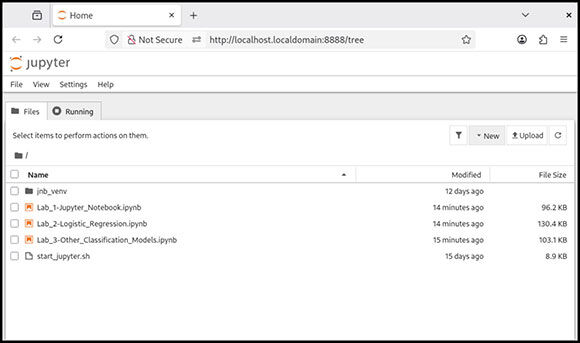
Figure 1. The Jupyter Notebook Dashboard
You can run an existing Jupyter notebook file from the Jupyter Notebook Dashboard simply by clicking on its file name. This will cause the file to be opened in a separate tab and its associated kernel to start running in the background. By selecting the Running tab (refer to Figure 1), you can see a list of all notebook files that have already been opened and currently have an associated kernel running. From here, you can close a notebook file and shut down its kernel, which can be useful if the tab containing a notebook file was inadvertently closed while its kernel was still active.
Notebook files
As mentioned earlier, notebook files are used to bring together data, code, and prose to tell an interactive, computational story. They serve as a complete computational record of a computing session, interleaving explanatory text and executable code with rich representations of resulting objects (such as 3D models, charts, graphs, and interactive figures, etc.). Each notebook file (commonly referred to as a “notebook”) consists of independent “Markdown” and executable “code” cells that can be executed in any order. However, convention dictates that code cells be executed in the order in which they appear— this provides users with the ability to execute a notebook, in its entirety, in a single step. Figure 2 illustrates how a new Jupyter notebook file looks when it is first created.
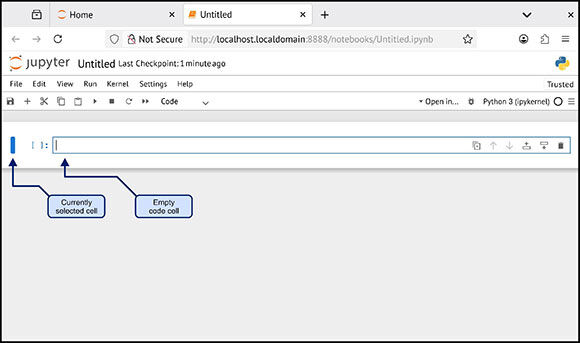
Figure 2. A new Jupyter notebook file with a name (in this case “Untitled”), a menu bar, a toolbar, and an empty code cell.
Internally, notebook files are JavaScript Object Notation (JSON) files that are saved with the .ipynb file extension. JSON is an open standard file format and data interchange format that uses human-readable text to store and transmit data objects consisting of attribute–value pairs and arrays. Metadata stored in a notebook file consists of a dictionary of definitions used to set up and display the notebook, together with a list of the number and types of cells available in the notebook and information about the file’s format and version.
Why Python?
Because Jupyter Notebook uses the IPython kernel by default, Python is typically the programming language used by notebook developers. But what exactly is Python and why is it preferred? Python is a popular open-source, general-purpose, high-level, interactive programming language. It was created by Guido van Rossum in 1989 and supports multiple programming paradigms, including Procedural, Functional, and Object-Oriented.
Python’s design philosophy is “there should be one—and only one—obvious way to do it,” and it emphasizes code readability. In fact, where in other programming languages code indentation is used for readability, in Python it is used to indicate a block of code (such as an “if-then” conditional or a “do-while” loop). Programmers like it because:
- It is relatively easy to learn.
- It is open source, which means it’s available at no cost.
- It has few keywords, a simple structure, and a clearly defined syntax.
- It provides very high-level, dynamic data types and supports dynamic type checking.
- It supports automatic garbage collection.
- It has an extensive set of support libraries, including libraries for data science, data analytics, and machine learning.
- It can be used as a scripting language, or it can be compiled to build large, high-performance applications.
- It can be easily integrated with C, C++, COM, ActiveX, CORBA, and Java.
- It can run in interactive mode, bypassing the need for compilation and making the edit-test-debug cycle incredibly fast.
Stay tuned
In the next article in this series, we’ll take a closer look at how Jupyter Notebook is used to build notebook files.

Roger E. Sanders is a Principal Sales Enablement & Skills Content Specialist at IBM. He has worked with Db2 (formerly DB2 for Linux, UNIX, and Windows) since it was first introduced on the IBM PC (1991) and is the author of 26 books on relational database technology (25 on Db2; one on ODBC). For 10 years he authored the “Distributed DBA” column in IBM Data Magazine, and he has written articles for publications like Certification Magazine, Database Trends and Applications, and IDUG Solutions Journal (the official magazine of the International Db2 User's Group), as well as tutorials and articles for IBM's developerWorks website. In 2019, he edited the manuscript and prepared illustrations for the book “Artificial Intelligence, Evolution and Revolution” by Steven Astorino, Mark Simmonds, and Dr. Jean-Francois Puget.
From 2008 to 2015, Roger was recognized as an IBM Champion for his contributions to the IBM Data Management community; in 2012 he was recognized as an IBM developerWorks Master Author, Level 2 (for his contributions to the IBM developerWorks community); and, in 2021 he was recognized as an IBM Redbooks Platinum Author. He lives in Fuquay Varina, North Carolina.
MC Press books written by Roger E. Sanders available now on the MC Press Bookstore.
 |
||
 |
|
QuickStart Guide to Db2 Development with Python Discover how Python, SQL, and Db2 can successfully be used with each other. List Price $9.95 Now On Sale
|
|
||
 |
|
DB2 10.5 Fundamentals for LUW (Exam 615) Don't even think about attempting to take the DB2 Fundamentals exam without this indispensable study guide. List Price $79.95
Now On Sale
|
|
||
 |
|
DB2 10.1 Fundamentals (Exam 610) Let one of the world's leading DB2 authors and a participant in the exam development help you succeed. List Price $79.95 Now On Sale
|
|
||
 |
|
Artificial Intelligence: Evolution and Revolution Operational AI has become available to the masses, setting the wheels in motion for a worldwide AI revolution that has never been seen before. List Price $16.95
Now On Sale
|
|
||
 |
|
DB2 10.5 DBA for LUW Upgrade from DB2 10.1: Certification Study Notes Here's everything you need to know to take and pass Exam 311, complete with a practice exam and study key. List Price $21.95 Now On Sale
|
|
||
 |
|
From Idea to Print Here's everything you need to know to turn your technical knowledge and expertise into a published article or book. List Price $49.95
Now On Sale
|
|
||
|
|
DB2 9 Fundamentals (Exam 730) Use this review before taking the test to prove you've mastered the basics of DB2 9. List Price $59.95 Now On Sale
|
|
||
 |
|
DB2 9 for Linux, UNIX, and Windows Database Administration (Exam 731) Use this indispensable study guide to prepare to take, and pass, Exam 731. List Price $64.95
Now On Sale
|
|
||
 |
|
DB2 9.7 for Linux, UNIX, and Windows Database Administration (Exam 541) Get ready to take the DB2 9.7 certification exam with this handy study guide. List Price $21.95 Now On Sale
|
|
||
 |
|
DB2 9 for Linux, UNIX, and Windows Advanced Database Administration (Exam 734) Review all exam topics and take the included practice test to be sure you're ready on testing day. List Price $64.95
Now On Sale
|
|
||
 |
|
DB2 9 for Linux, UNIX, and Windows Database Administration Upgrade (Exam 736) Prep for success with the master of DB2 certification study guides! List Price $34.95 Now On Sale
|
|
||
 |
|
Data Fabric: An Intelligent Data Architecture for AI This book explains the concepts and values that a data fabric approach can deliver to both technical and business communities. List Price $19.95
Now On Sale
|
|

 Business users want new applications now. Market and regulatory pressures require faster application updates and delivery into production. Your IBM i developers may be approaching retirement, and you see no sure way to fill their positions with experienced developers. In addition, you may be caught between maintaining your existing applications and the uncertainty of moving to something new.
 IT managers hoping to find new IBM i talent are discovering that the pool of experienced RPG programmers and operators or administrators with intimate knowledge of the operating system and the applications that run on it is small. This begs the question: How will you manage the platform that supports such a big part of your business? This guide offers strategies and software suggestions to help you plan IT staffing and resources and smooth the transition after your AS/400 talent retires. Read on to learn:
LATEST COMMENTS
MC Press Online