








Don't like column separators in iSeries Access when you use yellow or turquoise? Here's how to easily remove them.
Column Separators occur automatically when you use yellow or turquoise on a 5250 color terminal. (When was the last time you saw one of those?) iSeries Access faithfully reproduces this behavior, as in Figure 1.
Column Separators have always mildly annoyed me, and I avoided using yellow and turquoise. They annoy me a more now, because I'm maintaining code in which the original developer liked to use yellow. There is no way to change the 5250 data stream, but iSeries Access gives you a preference setting where it is very easy to turn off column separators in a session so that Figure 1 turns into Figure 2.
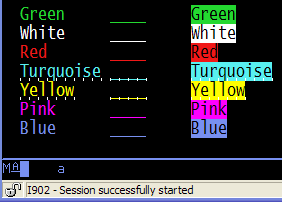
Figure 1: Turquoise and yellow have Column Separators. (Click images to enlarge.)
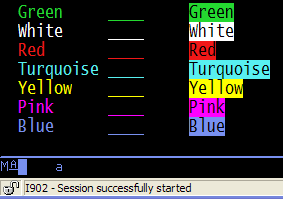
Figure 2: No more automatic Column Separators on turquoise or yellow!
Getting to the Right Preference
Start off by getting to the Display Setup dialog, as in Figure 3.
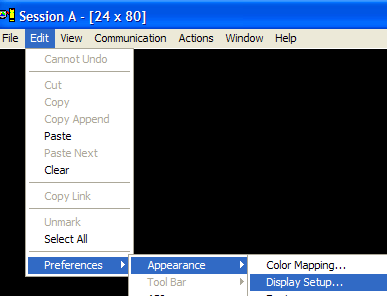
Figure 3: Navigate to the Display Setup.
When you click Display Setup, you will get a window like Figure 4.
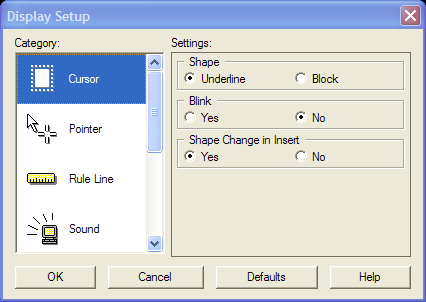
Figure 4: This is the Display Setup window.
Grab the slider in the left pane and pull it all the way down, as in Figure 5.
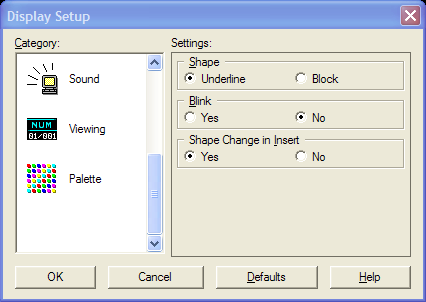
Figure 5: Slide down to the bottom of the Display Setup window.
Setting the Right Preference
Now click on the "Num 01/001 Viewing" icon, and you get the window in Figure 6.
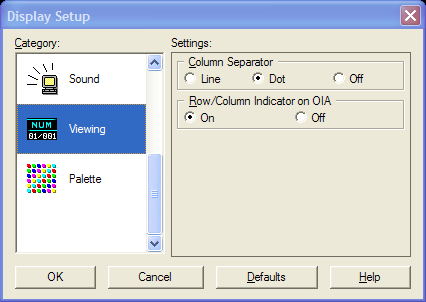
Figure 6: Control Column Separators here.
In the right pane, at the top, are three radio buttons that control Column Separators. Click the Off button and then click OK. Your session will no longer display Column Separators! That's all there is to it. Simple, if you know where to look.
Version
This tip is based on version 5.8 of the Workstation Program for Windows, which is part of Version 5, Release 4 Modification level 0 Service level SI20465 of iSeries Access for Windows. This is the earliest version I have access to, but the feature may also be in prior versions.
Other Customizations
I dislike the default setup of iSeries Access, and I change it for my own personal use because that makes me more productive. If you're interested in some of the things I've done to my personal iSeries Access sessions, see these four previous tips on using a better font, enabling the Windows editing keys, reversing the screen image, and miscellaneous other customizations. Experiment and see if you can make your green-screen more efficient and enjoyable.

 Business users want new applications now. Market and regulatory pressures require faster application updates and delivery into production. Your IBM i developers may be approaching retirement, and you see no sure way to fill their positions with experienced developers. In addition, you may be caught between maintaining your existing applications and the uncertainty of moving to something new.
 IT managers hoping to find new IBM i talent are discovering that the pool of experienced RPG programmers and operators or administrators with intimate knowledge of the operating system and the applications that run on it is small. This begs the question: How will you manage the platform that supports such a big part of your business? This guide offers strategies and software suggestions to help you plan IT staffing and resources and smooth the transition after your AS/400 talent retires. Read on to learn:
LATEST COMMENTS
MC Press Online